Use this guide to create the owner contract, build its revenue SOV, prepare contract documents for approval and e-signature, download a PDF, and understand deletion and accounting-sync consequences.
Start here
- Create the owner contract: Create a Prime Contract.
- Build the billing structure: Build and lock the Prime SOV.
- Set overhead and profit percentages: Set up Change Order markup.
- Send the contract for signature: Prepare the contract for e-signature.
- Bill or change the owner: Use the Prime Contract with invoices and changes.
- Download or delete: Use Prime Contract actions.
- Something is blocked: Troubleshoot Prime Contract.
Create and administer
Create a Prime Contract
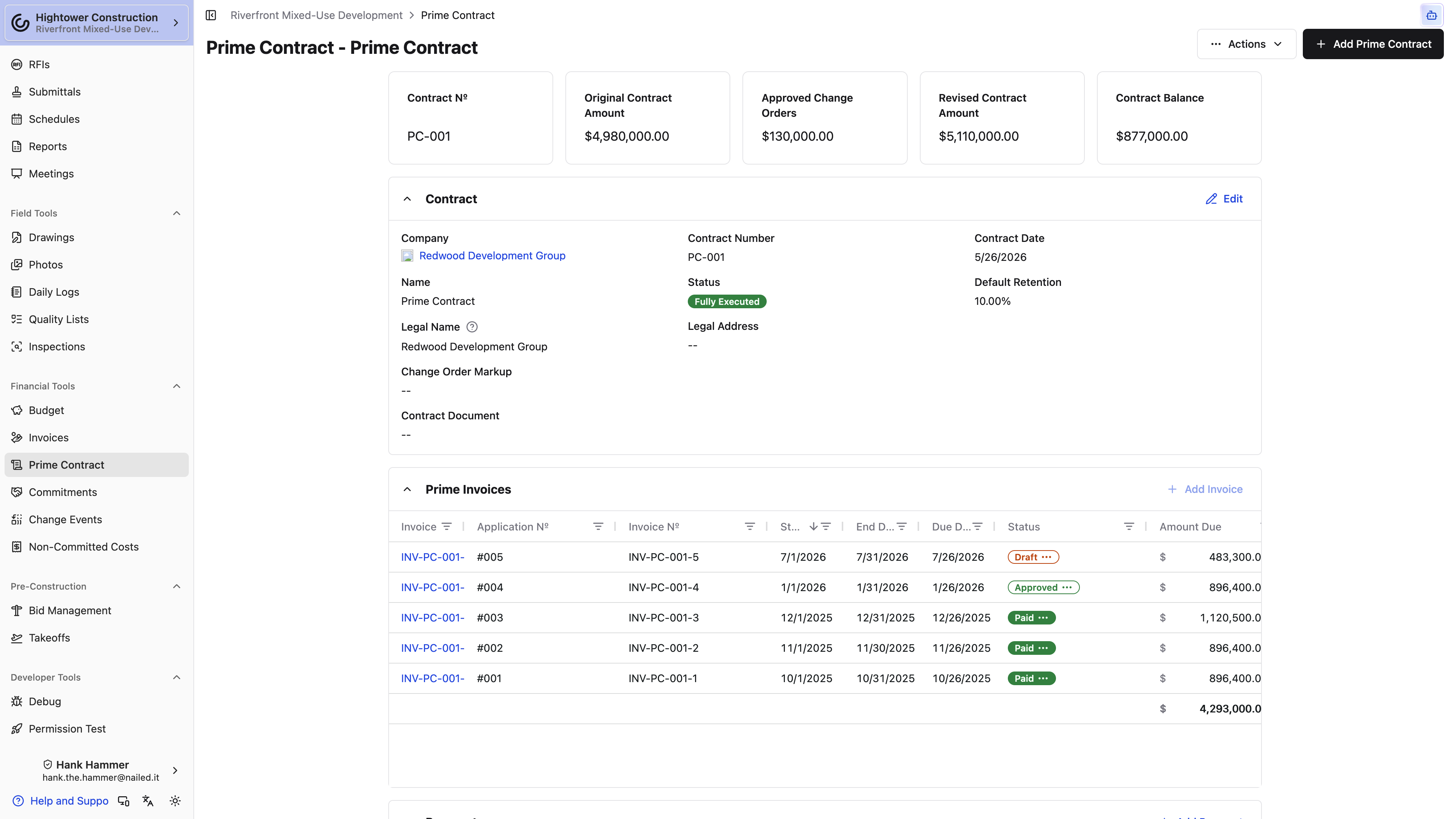
- Open Prime Contract.
- Select Add Prime Contract.
- Choose the owner company. On a Sage Intacct organization, this list is limited to companies typed as Owner.
- Enter the contract number, title, dates, and other agreement details.
- Save, then build the Prime SOV.
The contract page opens with summary cards and a strip of section tabs: Contract, Scope of Work, Schedule of Values, Change Orders, Invoices, and Payments. Select a tab to jump to that section. The strip stays pinned to the top while you scroll, and the counts on Change Orders, Invoices, and Payments tell you what's there before you get to it. On a narrow screen, swipe the strip or use the arrow at either end to reach the rest.
The Prime Contract tracks owner revenue. Vendor and subcontractor costs belong on Commitments or Purchase Orders.
A project can have more than one Prime Contract. Use the Prime Contract switcher to select the agreement you intend to review, invoice, change, download, or delete.
Build and lock the Prime SOV
The Prime SOV is the line-item structure used by Owner invoices and Prime Change Orders. Add lines manually or import a CSV or PDF. Import CSV or PDF opens Import SOV Line Items — upload a CSV or PDF of SOV line items; AIA G703 continuation sheets are supported. Large files can take a few minutes.
The grid groups lines by Revenue Code when your organization uses revenue codes, or by Cost Code otherwise, and each group stays collapsed until you open it. A group holds the contract's own lines plus the lines from every Prime Change Order that isn't void. It opens with Original Amount, Approved COs, Pending COs, and Revised Amount showing. Approved COs counts Fully Executed Prime Change Orders, Pending COs counts the rest, Drafts included, and Revised Amount is the original plus approved changes. Status, Sub Project, SOV Description, Retention, Qty, Unit, Unit Price, Change Orders, Remaining Amount, Progress, Budget Impact, and Revised Budget Impact start hidden — turn them on from the column picker when you need them. Confirm for each line:
- Description
- Revenue code, when enabled
- Subproject, when used
- Qty, Unit, and Unit Price when the line is unit-priced. Amount follows from quantity × unit price; leave those blank and type Amount for a lump-sum line.
- Retention
- Billing Type for progress billing or time-and-material billing
Revenue codes organize owner revenue. Cost codes and cost types organize vendor cost, so don't use the Prime SOV as if it were a subcontractor Commitment.
Lock the SOV after approval. Use Unlock the SOV for editing on a commitment only to correct the approved structure. A later owner scope change belongs on a Prime Change Order so its value and history remain separate.
A Fully Executed Prime SOV stays editable for the people trusted with it. Adding, editing, deleting, importing, or locking lines on an executed Prime Contract takes Edit a commitment's schedule of values after it has been executed on top of Manage financials like change orders, contracts, receipts (excluding financial reporting). Admin and Manager have it by default, and so do custom roles built on them. Without it, those controls don't appear once the contract is executed.
Note: Once an SOV line has invoice activity, recoding it splits billing history. A line created by a Prime Change Order should be corrected through that change.
Set up Change Order markup
Most owner contracts let you add overhead, profit, insurance, or general conditions on top of the cost of a change. Set those percentages up once on the Prime Contract and every Prime Change Order can pull them in as line items, instead of someone working them out on a calculator.
Edit the Contract block on the Prime Contract and use Add Change Order Markup. Each markup needs a Name, a Percentage, and a Cost Code, plus a Cost Type when your organization requires one. Markups apply in the order they appear — drag them to reorder — which matters, because that order decides what each one is calculated on.
Calculation is the important field:
- Basic takes the percentage of the change's own line items. Nothing that came before it counts.
- Includes Above takes the percentage of the change plus every markup already applied. This is straightforward compounding.
- Selective Compounding takes the percentage of the change plus only the earlier markups you tick under Include Prior Markups.
That third option exists because contracts are rarely tidy about this. A typical one lets you take profit on overhead but not on the insurance line — with Selective Compounding you tick the overhead markup under Include Prior Markups and leave insurance unticked, and the arithmetic follows the agreement rather than the other way around.
Worked through: on a $100,000 change with 10% overhead as Basic, a 5% insurance markup as Basic, and 5% profit as Selective Compounding including only overhead, you get $10,000 of overhead, $5,000 of insurance, and profit of 5% of $110,000 — $5,500 — rather than 5% of $115,000. Selective Compounding only appears on a markup that has something above it to compound.
To apply them, open a Draft Prime Change Order that has line items and select Add Markup Line Items. Each markup becomes its own line, described with its name and percentage, coded to the cost code you set. Once they're on, the button reads Markup Line Items Added — it won't add a second set. Copy all from Vendor Change Orders applies the same markups automatically when it creates the Prime Change Order. See Copy vendor pricing to a Prime Change Order.
Note: A markup with no cost code is skipped when the lines are generated. If a markup you configured doesn't show up on the change order, that's the first thing to check.
Set this up before the first change order goes out and the owner sees the same markup structure every time.
Prepare the contract for e-signature
- Finish the Draft contract and Prime SOV.
- Select Actions → Prepare for Esigning.
- Upload the contract document.
- Configure recipients, approvers, signers, and signature fields.
- Confirm and send.
When approvers are configured, they review in order while the contract is Awaiting Approval. It then moves to Out for Signing, Ready to Countersign, and Fully Executed as signatures are completed.
While an active e-signature flow controls the record, status can't be changed manually.
You can correct a Fully Executed Prime Contract without reopening it. Anyone with Create new commitments, make changes to existing commitments can select Edit on the Contract or Scope of Work block, and the contract stays Fully Executed. Changing the Prime SOV also takes Edit a commitment's schedule of values after it has been executed. Executed Prime Change Orders don't follow that rule — they stay locked until they're moved back to Draft. See Prepare a Change Order for e-signature.
To move the contract out of Fully Executed instead — to Under Revision or Draft, for example — use the status badge on the Contract block or the Status field in its edit form. Either one takes Manage financials like change orders, contracts, receipts (excluding financial reporting). Status stays locked when the contract was signed through Constructable e-signing or the executed contract is linked to an accounting record. An edit or a reopen can require a separate accounting correction, so for a routine change in owner scope, use a Prime Change Order instead.
Understand approvals, status, and notifications
The contract document workflow notifies the configured approver or signer when their action is due. Its normal sequence is:
Draft → Awaiting Approval, when configured → Out for Signing → Ready to Countersign → Fully Executed
Void keeps a contract in project history without treating it as active. Use Void instead of deletion when the agreement should remain visible for audit or explanation.
Approvals and signatures apply to the contract document flow. They don't approve an Owner invoice or Prime Change Order; each has its own status and actions.
Connected owner workflows
Use the Prime Contract with invoices and changes
- Owner invoices bill progress against Prime SOV lines. See How to use Invoices.
- Prime Change Orders change owner revenue and can add lines to the Prime SOV when executed. See How to use Change Events.
- A Prime Change Order's Billable On date controls when its value counts as billable and when its Budget Modification is created or updated.
- Fully Executed records the document lifecycle. It is separate from Billable On.
- The contract's Prime Change Orders block, below the SOV, lists every Prime Change Order that isn't void, highest number first, with its Change Event, Status, Executed date, Schedule Impact (days), and Amount and a total at the bottom. The block header adds up approved and pending dollars; on a phone, that summary sits above the list.
Don't create a new Prime Contract for a monthly billing cycle or scope change. Use an Owner invoice or Prime Change Order against the existing agreement.
Use Prime Contract actions
From Actions:
- Prepare for Esigning appears on a Draft without an active contract signing flow.
- Download PDF compiles the current contract PDF.
- Delete Prime Contract opens a destructive confirmation.
Deleting a Prime Contract removes its Owner invoices, SOV lines, Change Orders, attachments, and contract documents. The dialog lists the affected records before confirmation. This can't be undone in the app.
Correct an erroneous field or use Void when history should remain. Delete only when the entire record and every dependent owner-financial record should be removed.
Accounting and troubleshooting
Understand Prime Contract accounting sync
Sage Intacct can exchange Prime Contracts, SOV lines, Prime Change Orders, and owner invoices according to the organization's configured mappings. Some outbound flows create the accounting document but don't send later edits. Confirm the configured direction before changing an executed record.
QuickBooks owner billing is invoice-driven: an eligible Approved or Paid Owner invoice can become a QuickBooks Invoice, while a negative one can become a Credit Memo.
An integration icon or status describes the link to accounting. Fix and retry an existing failed link; don't recreate the Prime Contract or invoice.
Troubleshoot Prime Contract
Prime Contract is missing
Confirm the Financial package and View prime contracts. Also confirm the intended project and, when several Prime Contracts exist, select the correct record in the switcher.
Add Prime Contract is missing
The user needs Create new commitments, make changes to existing commitments.
An SOV line is read-only
Check whether the SOV is locked, the line came from a Prime Change Order, or invoice activity exists. On a Fully Executed contract, SOV changes also need Edit a commitment's schedule of values after it has been executed. A line revised by a Prime Change Order that's out for signing or executed shows This line item is used by a change order that is out for signing or executed, so it cannot be changed. Correct the source record instead of rewriting established billing history.
Prepare for Esigning is missing
The contract must be Draft, the user needs financial write access, and no active contract signing flow can already exist.
Status can't be changed
An active e-signature flow controls status. Complete or resolve that flow rather than forcing the contract ahead manually. On a Fully Executed contract, change status from the badge on the Contract block or the Status field in its edit form. Both need Manage financials like change orders, contracts, receipts (excluding financial reporting). Status stays locked when the contract was signed through e-signing or is linked to an accounting record.
Delete would remove owner billing history
Cancel the deletion. Correct the contract or use Void unless every listed dependent record should be removed.