Punch lists by Constructable
Construction punch list software for general contractors
Walk the job, dictate each item, and pin it to the sheet. Your subs see their own items, fix them, and send them back for your approval without buying a seat because we do flat pricing with unlimited users.
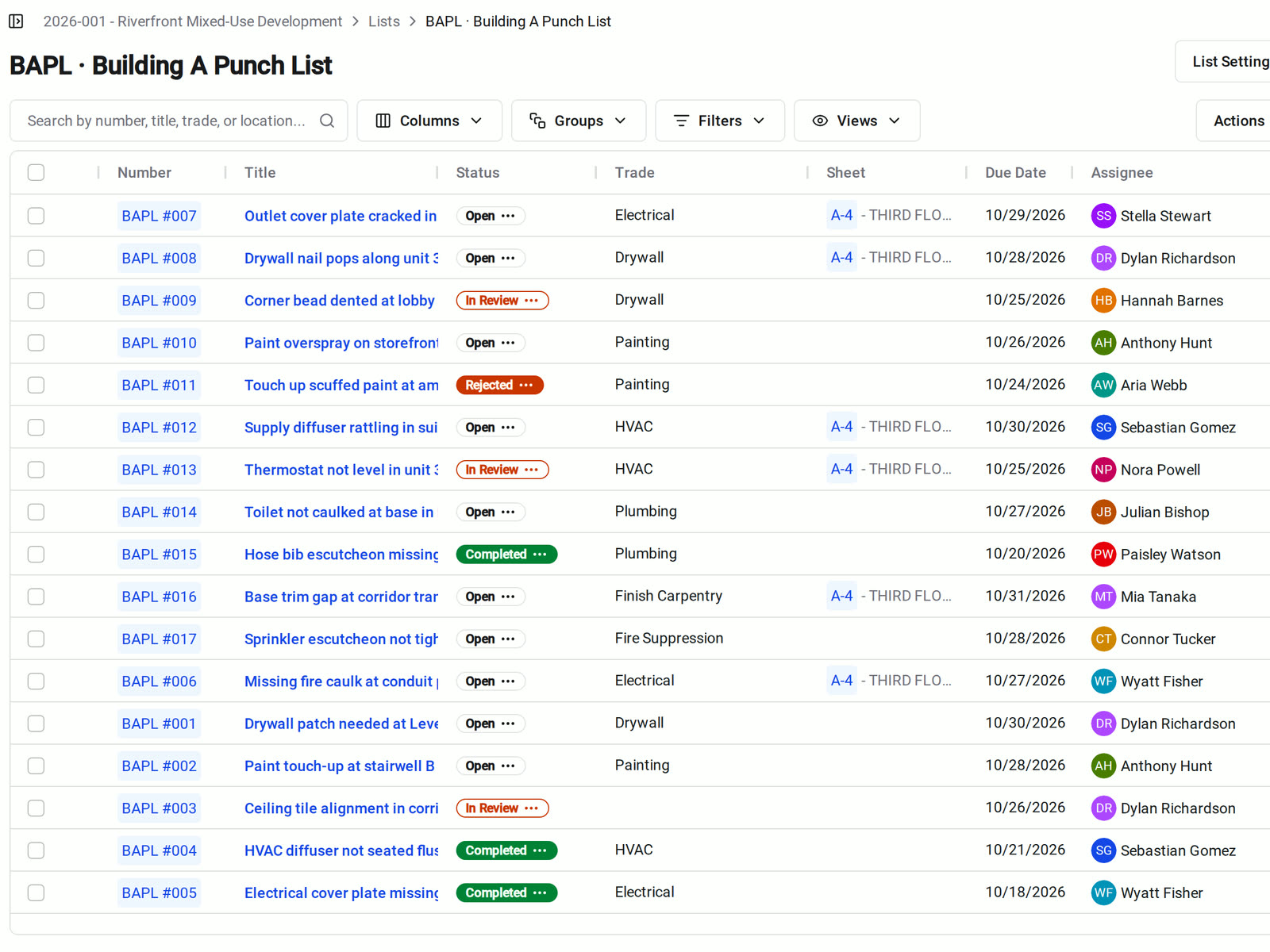
Capture on the walk
Describe the problem once
Our construction punch list software lets you dictate the item the way you'd describe it to a foreman. Select Autofill from Description, and Constructable fills in the location and trade and suggests an assignee when the trade points to one sub.
• Photos: take them on the spot, or attach photos already in the project
• The same check on every floor: save it as an item template and pick it from your phone
• Saving the item: the assignee gets an email right away instead of waiting for their digest
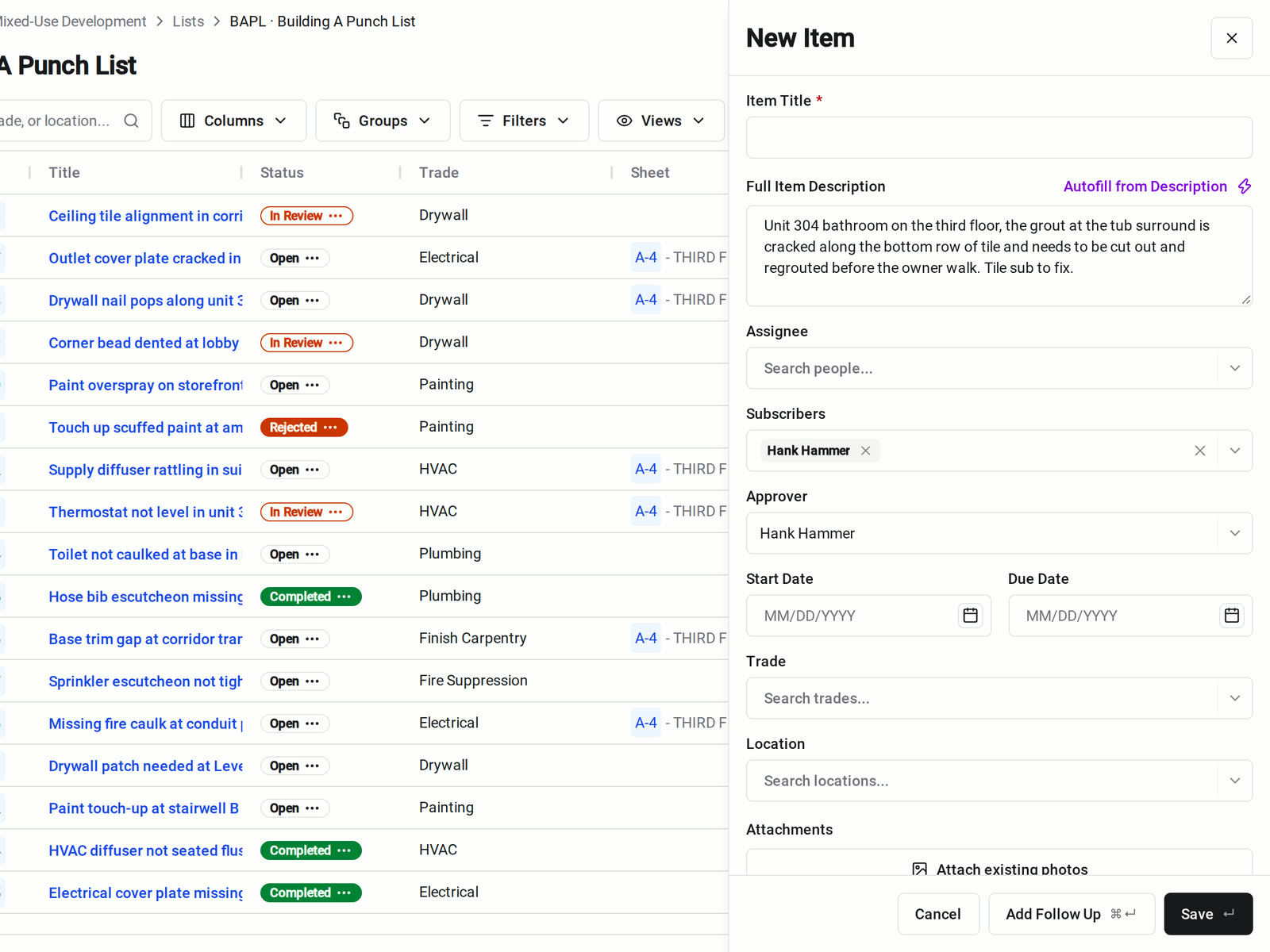
On the drawings and at the door
Put every item where the work is
Pin each item to the sheet so the trade sees exactly where it is, and post QR codes at each location so crews scan straight into its items.
• On the sheet: the list's Sheet column shows where each item is pinned, and the PDF export lists the sheets too
• At the door: print one QR code for each project location, and scan it in the app to see that location's items
• The next item in the same room: add it after you scan, and the location is already filled in
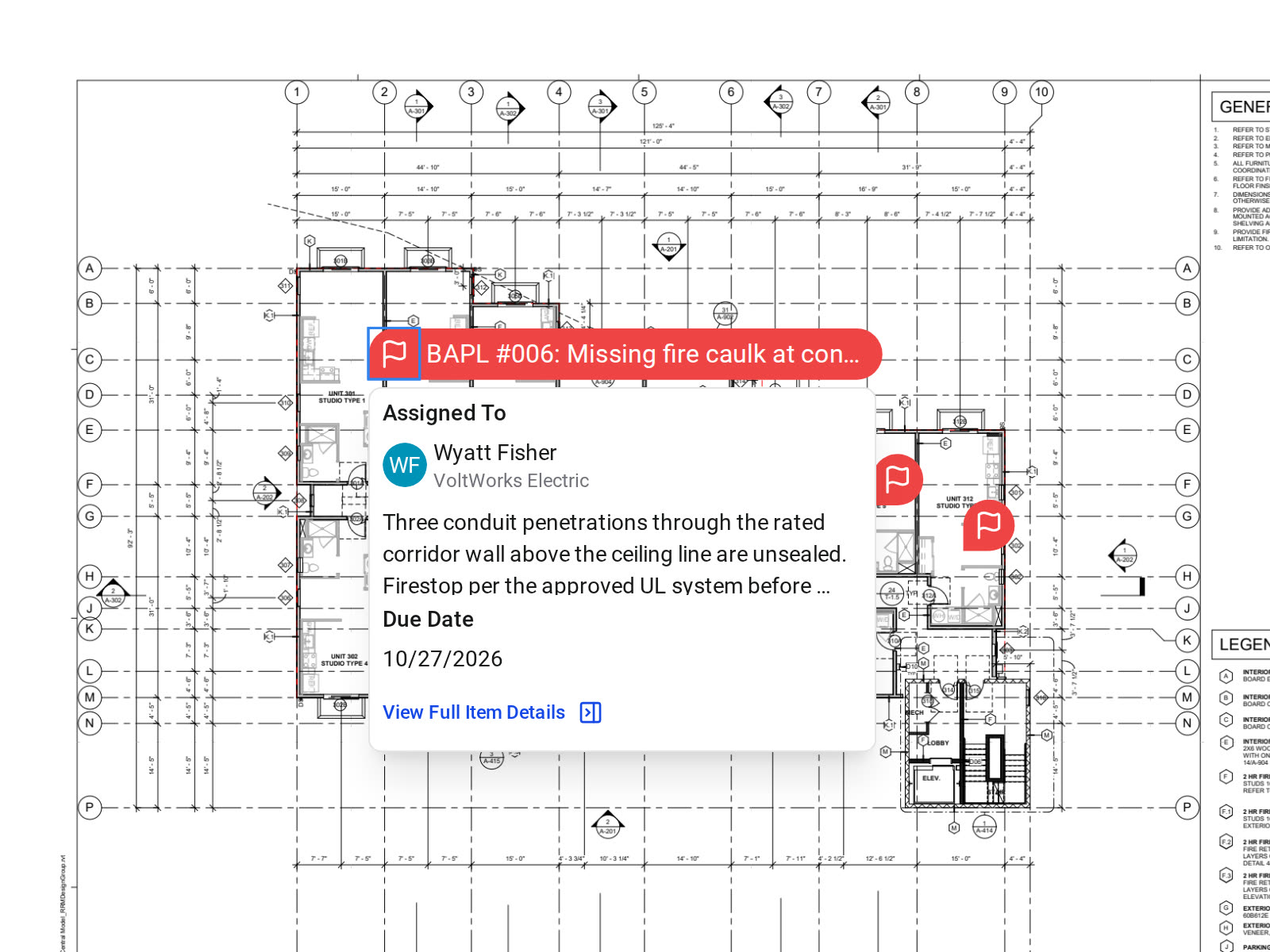
Review and approval
Subs fix it. You decide when it's done.
Every item has an assignee who does the work and an approver who accepts it. Items move from Open to In Review to Completed, so the status shows whose turn it is.
• The sub finishes the work: they add a photo and a comment and move the item to In Review, which emails the approver
• The work doesn't pass: mark it Rejected and send it back to Open with its photos and comments attached
• Subs see their company's work: by default a sub sees items assigned to anyone at their company, and can't mark them Completed
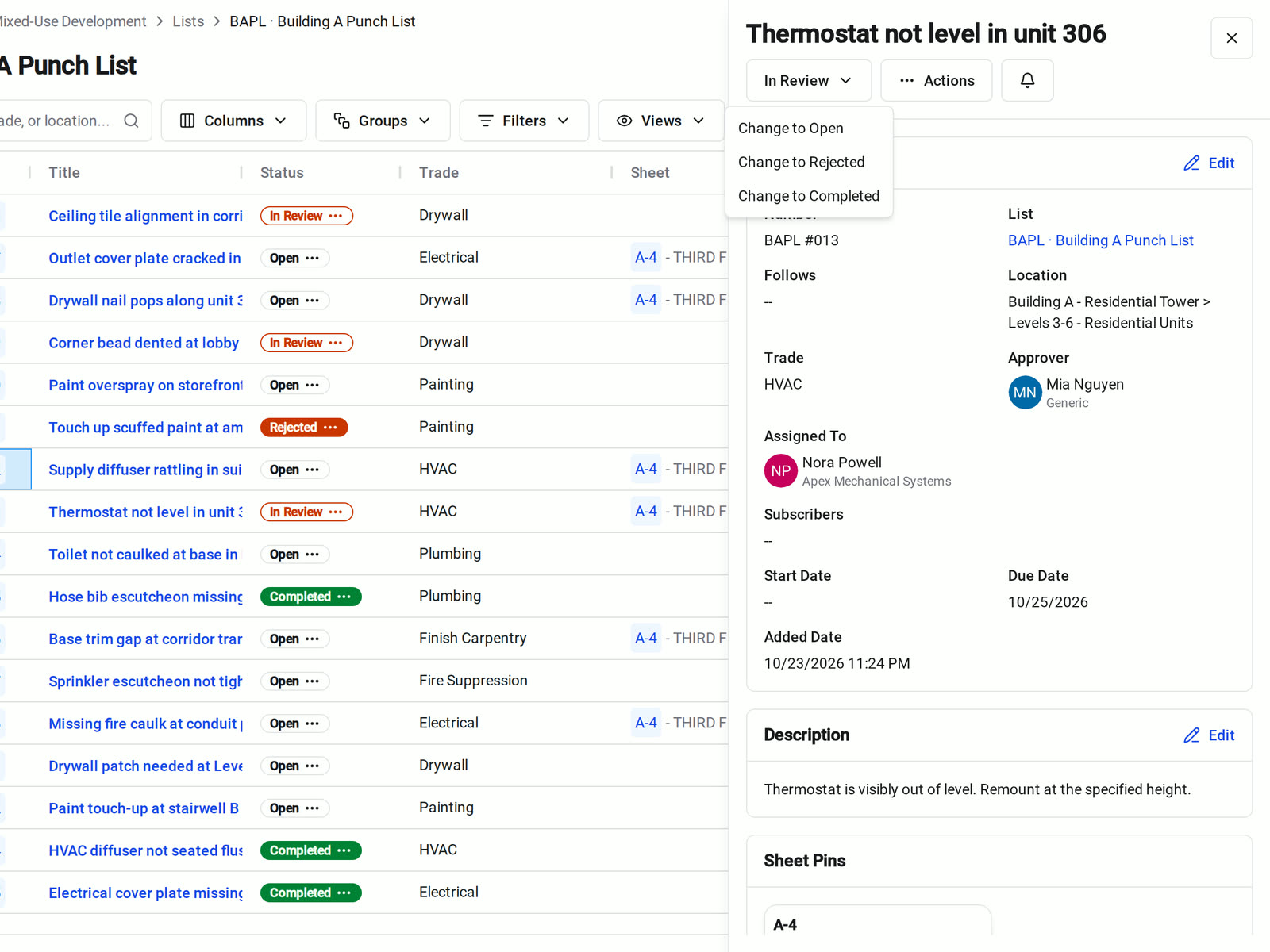
Standard lists
Run the same punch process on every job
Every project starts with a Punch List, Observations, Incidents, and To-Do List that all work the same way. Set them up once and carry them to the next job.
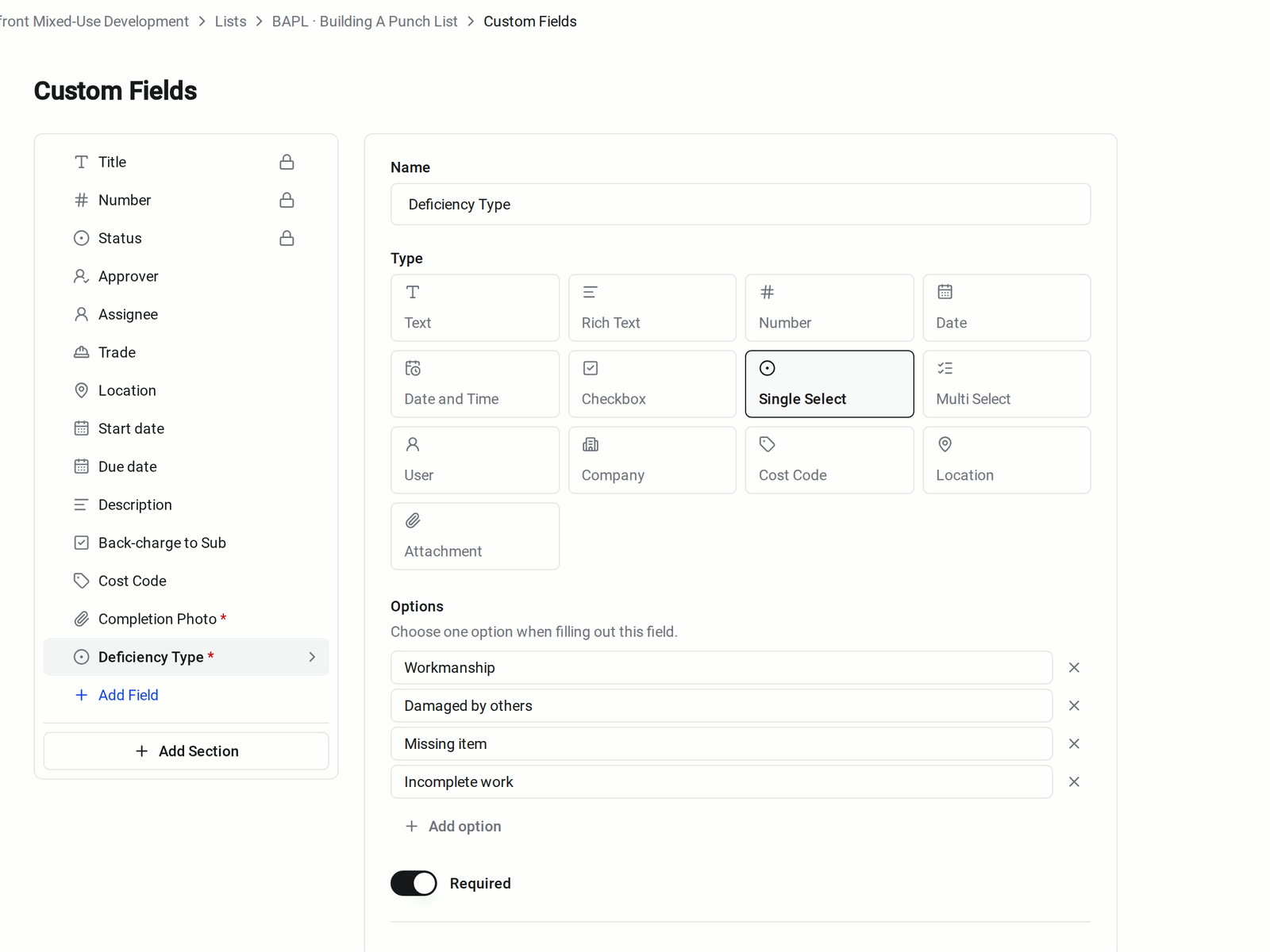
• Your company's details: add custom fields and sections, and hide the built-in fields a list never uses
• A new job: a template project copies its lists and their custom fields to every project you create from it
• A failed inspection: create a punch item from the inspection item, filled in and linked back to the inspection
Reports and closeout
Hand each sub a list of only their work
Filter the list to one trade, location, or due date, then export a PDF with photos for the sub or a CSV for your spreadsheet.
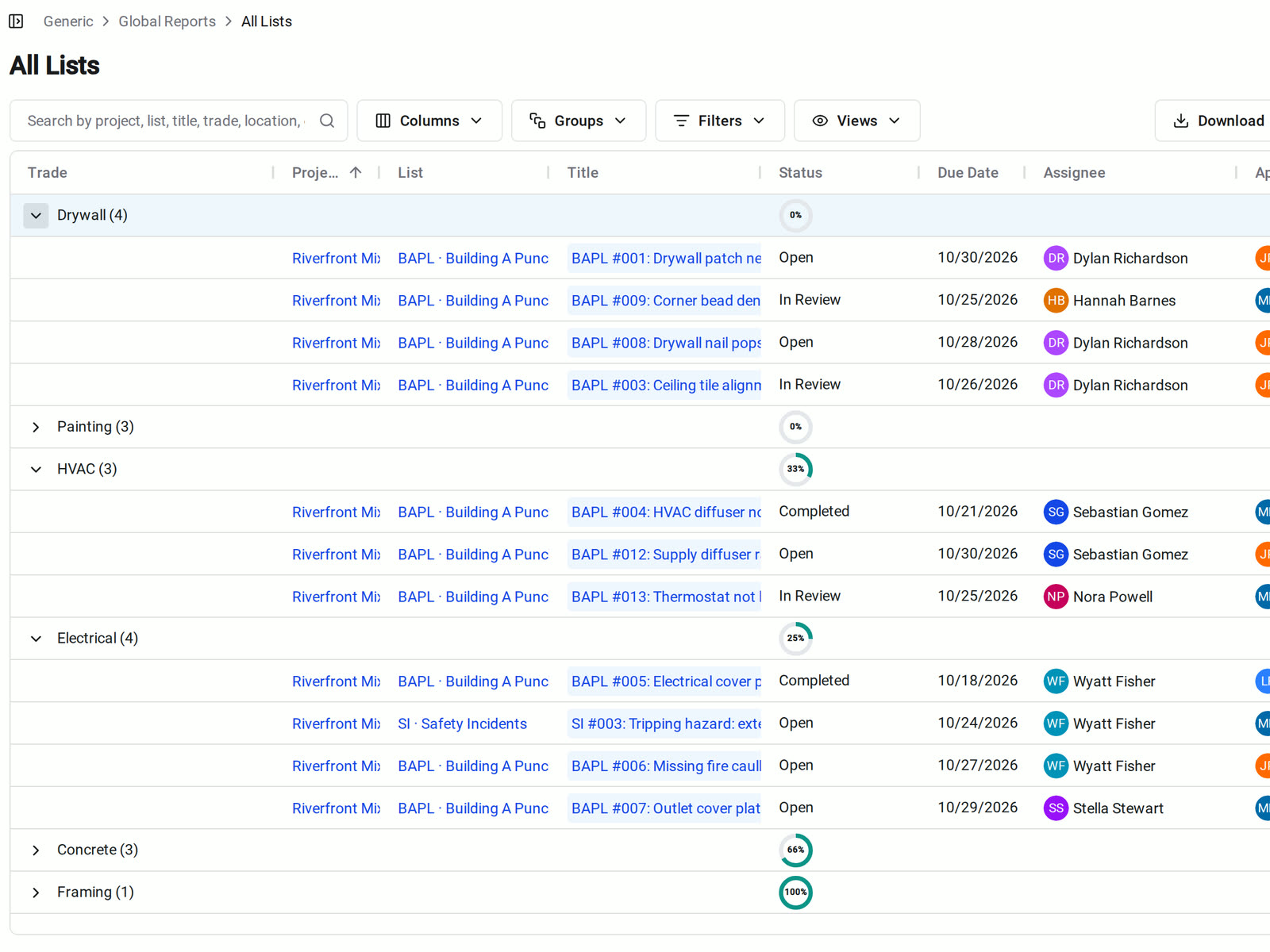
• Across the project: the List Report puts every list item on the project in one grid, grouped by trade, assignee, status, or location
• Across your company: All Lists in Global Reports shows punch items on every project
• Turnover: include the punch list in the project's Closeout package
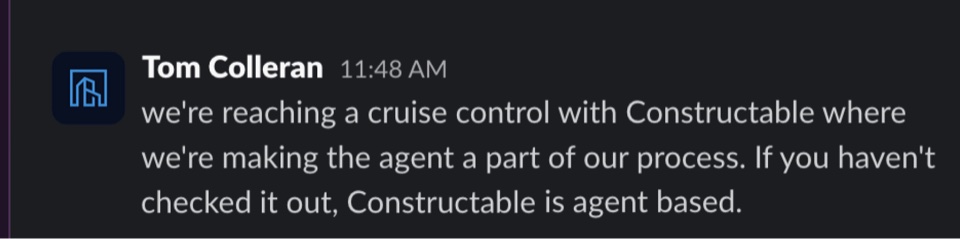
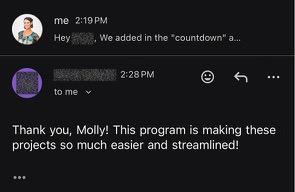
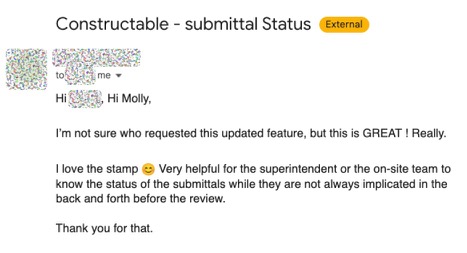
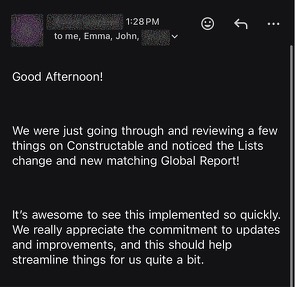
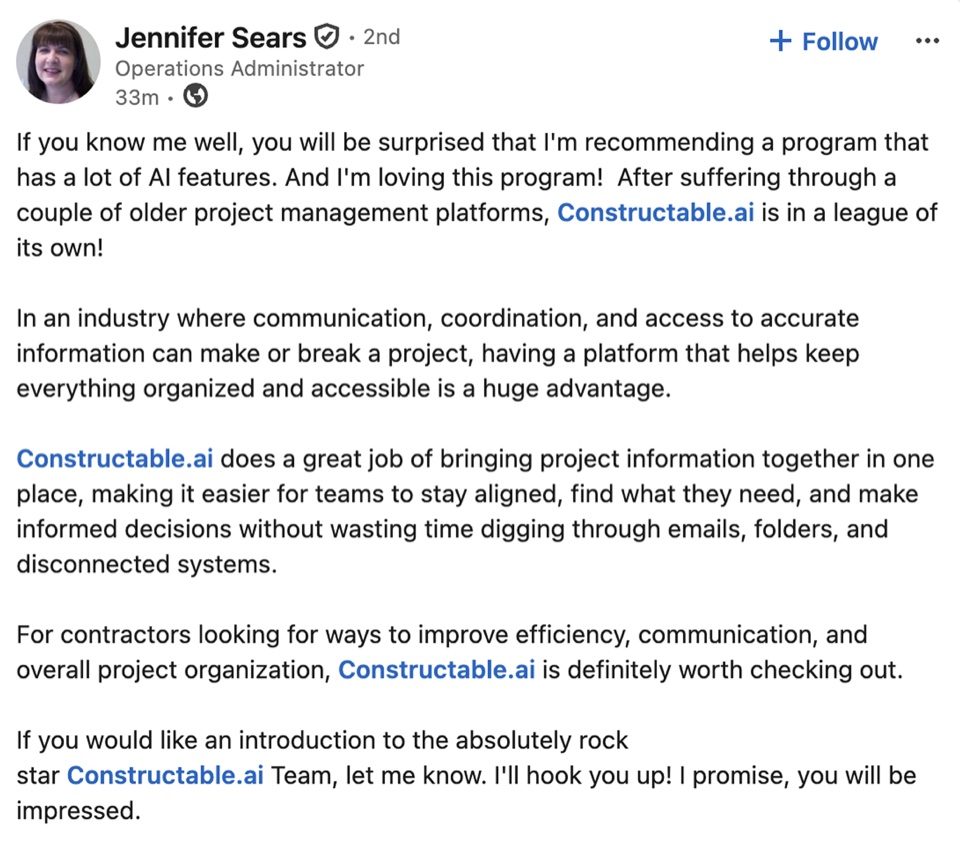
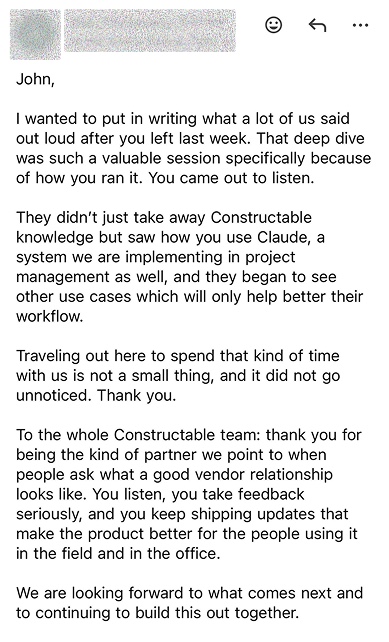
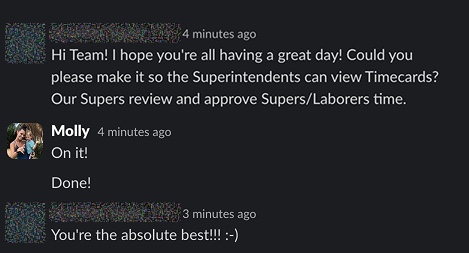
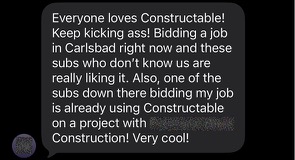
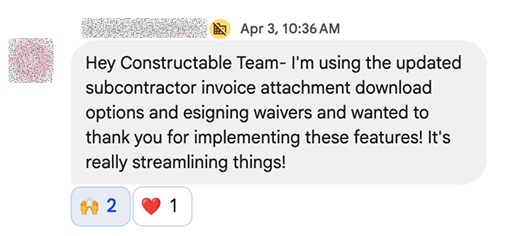
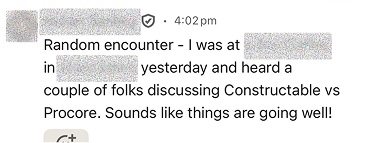
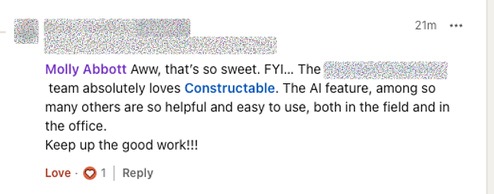
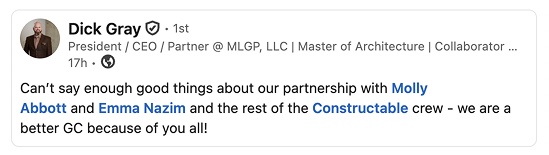
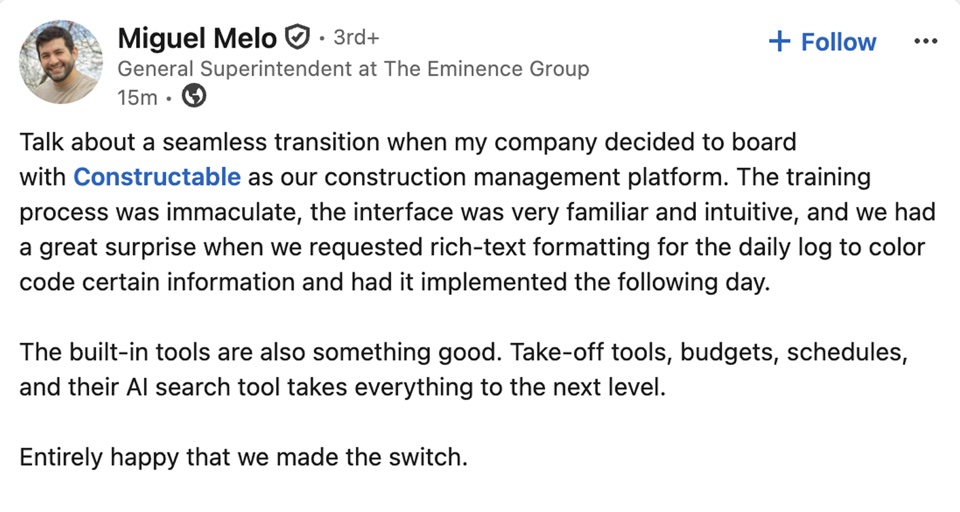
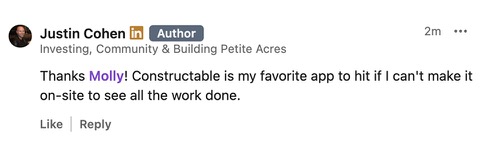
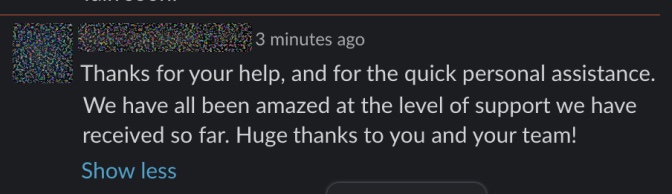
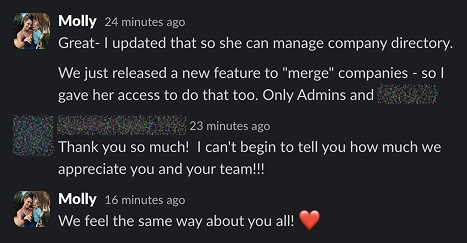
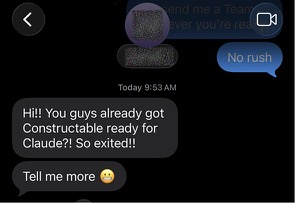
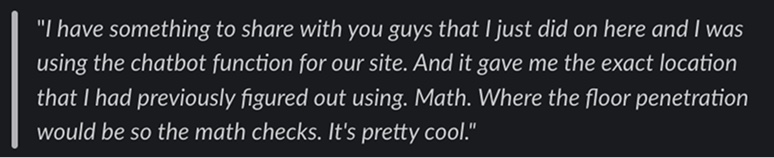
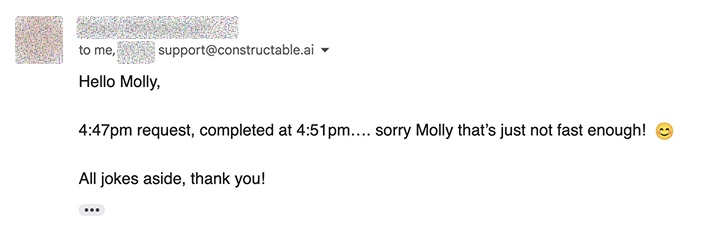
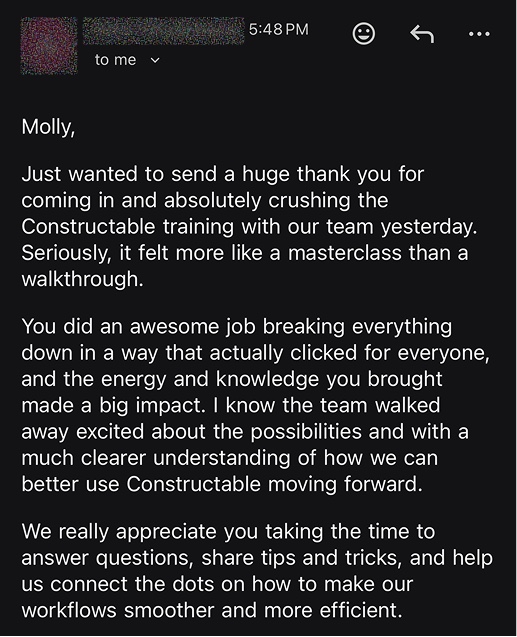
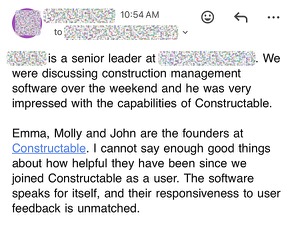
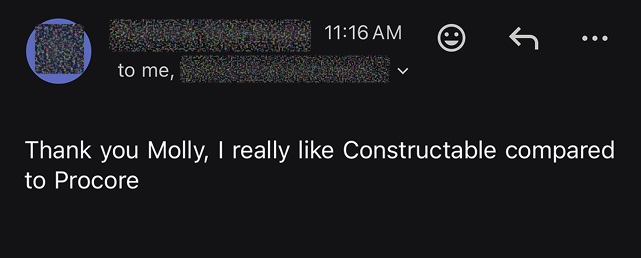
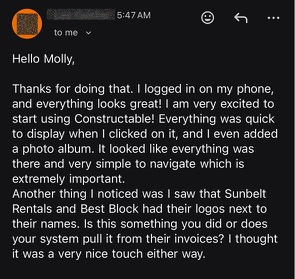
Hear from the GCs building with Constructable
Loved in the office and in the field
Take your drawings anywhere with the Constructable app for iPhone, iPad, and Android.


Close out the punch list
before the final walk.
Book a 30-minute demo with our team.
WallofHappiness






Frequently Asked Questions
Do subcontractors need a paid seat to see and close their punch items?
Can we pin punch items on the drawings?
How do QR codes work on the jobsite?
Can I dictate a punch item instead of typing it?
Who can mark an item complete?
Can we use the same punch templates and fields on every project?
Can we report on open punch items across all of our projects?
Can we send a sub a PDF of just their items, with photos?
Is punch list included in the Field Management plan, and what does it cost?
more time building
at a glance